Wi-Fi Dead Spots, Dropped Channels and That 9pm Stutter: A Router Health Check for UK IPTV

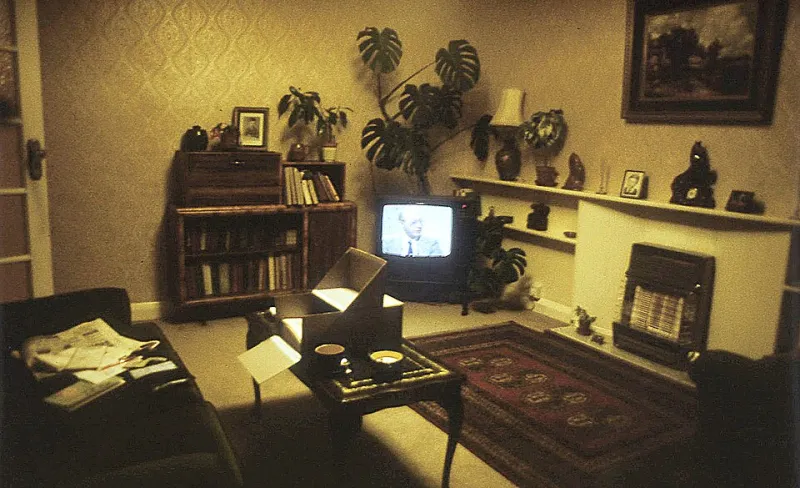
Photo: Puma1211, Public domain, via Wikimedia Commons
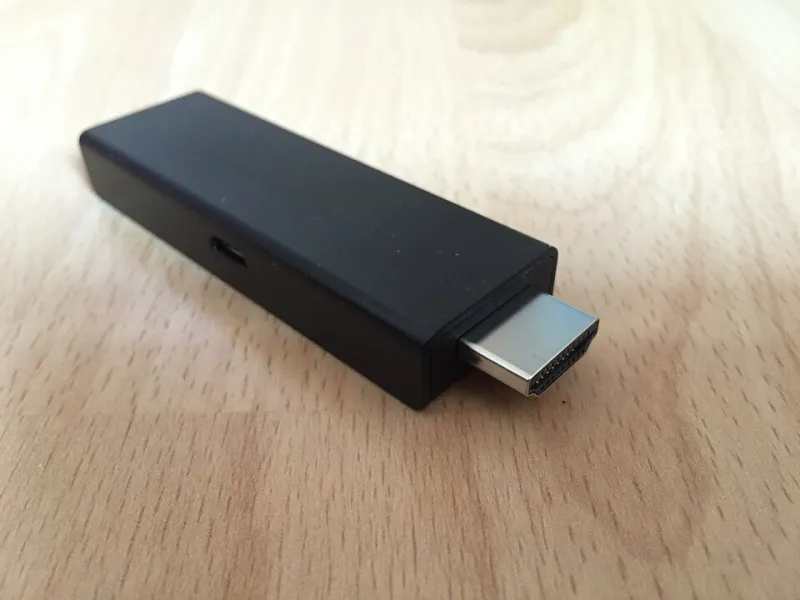
It's 9pm on a Tuesday. The drama everyone at work is talking about is about to kick off, and your picture dissolves into a mosaic of frozen faces for the fourth time this week. The Fire Stick gets the blame. Then the app. Then, inevitably, the provider.
Meanwhile the router the ISP posted out three years ago is sat behind the telly, balanced on a copy of the Yellow Pages, quietly doing a mediocre job. Before you fire off an angry email, spend an evening proving where the problem actually lives.
Why the box your ISP gave you struggles with live TV
Nothing against the BT Smart Hub 2, the Virgin Media Hub 5, the Sky Broadband Hub or the TalkTalk Wi-Fi Hub. They're perfectly decent for browsing, video calls and a bit of iPlayer. But live IPTV is a harsher workload than on-demand streaming, and it's worth understanding why.
Netflix and iPlayer buffer aggressively. They'll happily sit 30 seconds ahead of what you're watching so a hiccup never reaches your eyes. A live channel through an IPTV app usually holds two to five seconds of buffer, because it can't run ahead of the broadcast. That's a tiny cushion. Any packet loss, any sudden latency spike, and you see it instantly.
ISPs also tune their default hardware for coverage and stability rather than latency. Band steering — the feature that pushes your devices between 2.4GHz and 5GHz automatically — is a classic offender. It often parks a streaming stick on the slower, more crowded 2.4GHz band and leaves it there.
Test one: the cable test
Borrow an Ethernet cable (or a pair of powerline adapters if the router is rooms away) and hard-wire the streaming box for one evening. Watch the same channel at the same time you'd normally get trouble.
If the stutter vanishes, congratulations: you've found your villain, and it's Wi-Fi. If it carries on regardless, keep reading, because we've narrowed the field considerably.
Test two: the second-screen test
Put a phone or laptop on the same Wi-Fi, as close to the TV as you can get. Run a speed test, then leave a ping running to 1.1.1.1 for five minutes. Ignore the headline megabit figure — look at jitter and packet loss.
A steady 70Mbps line is far better for IPTV than a 300Mbps connection dropping three per cent of its packets. If the ping time bounces between 8ms and 200ms while nothing else is happening in the house, your Wi-Fi or your line has a problem, and no provider on earth can fix that from their end.
Test three: the timing test
Note down when it happens. Is it always between 8pm and 10pm? Does it clear by 11? Does it go haywire at half time in the football, when every neighbour is also streaming?
Compare a quiet Wednesday afternoon against a Saturday evening. If the afternoon is flawless and the evening is a mess, you're looking at congestion — either on your own Wi-Fi, where every surrounding flat is competing for the same channels, or further upstream on the ISP's network.
Settings actually worth checking
You don't need to become a network engineer. A handful of tweaks cover most of it.
- Split the bands. Give 2.4GHz and 5GHz different names so you can pin the streaming stick to the 5GHz network manually. It's the single most effective fix in a busy household.
- Drop the channel width on 5GHz. In a flat or a terrace, 80MHz often causes more trouble than it solves. Try 40MHz and see if things settle.
- Pick a clean 2.4GHz channel. Stick to 1, 6 or 11 and use a free Wi-Fi analyser app on your phone to see which is least crowded.
- Turn off the clever stuff. If band steering, "smart wireless" or automatic optimisation is causing flakiness, switching it off is not a downgrade.
- Check parental controls and content locks. BT Smart Setup, Sky Broadband Shield and TalkTalk's HomeSafe can interfere with odd ports and DNS lookups. Worth temporarily disabling while you diagnose.
- Try a different DNS. Cloudflare or Quad9 won't magically stop buffering, but they can speed up the sluggish channel lists and app logins some services suffer from.
- Update the firmware. Older ISP hubs have sat unpatched on shelves for years.
Move the router before you buy anything
It sounds daft, but half the dead spots I hear about in UK homes come down to a router jammed in a hallway cupboard, sat on the floor, next to a microwave and a cordless phone base. Get it up high, out in the open, and as central as the phone master socket allows. It costs nothing and it often does more than a £100 gadget.
When spending money actually makes sense
If you've done the tests and the Wi-Fi is genuinely the problem, you've got two sensible routes.
A mesh node is the easy option for long Victorian terraces and thick brick walls. A single extra unit from TP-Link Deco, BT Whole Home or Amazon Eero placed halfway between router and telly will usually sort a weak signal. Just be realistic: a mesh node with a poor wireless backhaul is only marginally better than no node at all.
Your own router is the option for people who want proper control. Virgin Media customers can put the Hub 5 into modem mode and run their own kit behind it. On Openreach FTTP, most providers use PPPoE, and BT's well-known username is [email protected] with any password you fancy. Check your ISP's settings before you buy, because getting this wrong is a fun way to spend a Saturday.
What I'd avoid is treating a powerline adapter as a miracle cure. In older houses with tired wiring, they can be worse than Wi-Fi.
Proving it isn't the provider
Keep a simple log for a week: date, time, channel, wired or wireless, what happened. Run a traceroute to the stream host if your app exposes it. Then ask yourself the honest question — if a wired connection on a quiet line is perfect, and the same box on Wi-Fi drops out at 9pm, whose problem is it?
Providers get blamed for an awful lot of 2.4GHz dead spots. Do the checks first, and if the evidence genuinely points their way, you'll have a much more convincing case when you get in touch.
Start with the router. It's the least glamorous suspect and, annoyingly often, the guilty one.