The 8PM Freeze: A Peak-Hour IPTV Diagnosis for UK Homes
Photo: Gmihail at Serbian Wikipedia, CC BY-SA 3.0 rs, via Wikimedia Commons
At 8PM, the UK internet takes a collective deep breath. Kettles go on, the main TV starts a stream, phones update and everyone settles in for the evening. If your IPTV picture chooses that moment to turn into a mosaic, it is tempting to blame the service. Sometimes you would be right, but the order of diagnosis matters: local problems first, national problems last.
First, prove it is actually peak-hour
Write it down. Note the app, the channel, the time, the device and whether you are on Wi-Fi or Ethernet. Run a speed test at 7:45, 8:00 and 8:15. If only one app fails, the app or service is the likely suspect. If everything fails at the same time, look at the network and the device.
Do not restart the router yet. A restart clears the evidence and changes the conditions. You want a pattern before you start fixing things.
Step 1: get the router out of the cupboard
Wi-Fi hates metal, water and walls. A router stuffed behind the TV, next to a fish tank or inside a media cabinet is asking for trouble. Move it central and high if you can, away from the microwave, baby monitor and cordless phone base. Those devices do not care about your evening plans.
If the router has external aerials, point them upright rather than aiming them at the TV like a tiny satellite dish. Wi-Fi radiates outwards, not in a laser beam.
Step 2: sort the Wi-Fi band and channel
Use 5GHz for devices in the same room as the router and 2.4GHz for distance. 5GHz is faster but less forgiving of walls. If you live in a flat, your neighbours are probably crowding the same channels. A Wi-Fi analyser app on your phone will show you which channels are busy.
On 5GHz, try a lower channel width such as 40MHz or 80MHz if the router allows it. Wider channels can be faster in ideal conditions but more prone to interference in dense housing. Avoid repeaters unless you have no alternative; a repeater halves throughput and adds latency, which is exactly what streaming does not want.
Step 3: wire the streamer
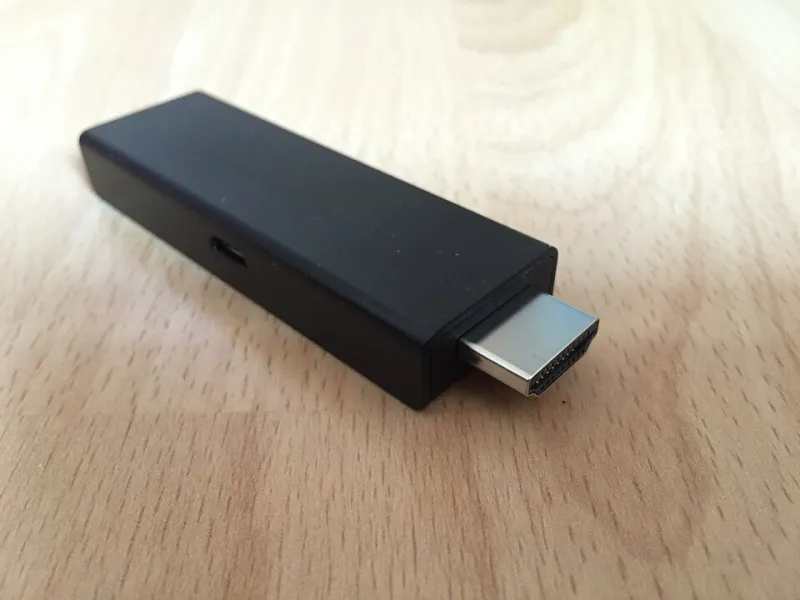
A £15 Ethernet adapter is the most effective upgrade for a Fire TV Stick. For a Google TV device, use a USB-C hub with Ethernet and power delivery. If you cannot drill holes, a flat cable under the carpet is still better than a weak Wi-Fi signal.
Powerline adapters can work, but they add latency and depend on your home's wiring. They are a last resort before a long cable, not a magic fix. Once the streamer is wired, test again at 8PM. If the stutter disappears, you have found your culprit.
Step 4: check the device is not the bottleneck
A streamer with 1GB of RAM will struggle when the app has to buffer, decrypt and draw a busy menu at the same time. Close background apps, clear old downloads and make sure you are using the official power adapter. A weak USB port on the TV can cause overheating and random crashes.
If the device feels hot, give it breathing room. An HDMI extension cable is not just for signal; it gets the stick away from the hot back of the panel. A factory reset is the last step, not the first, because it wipes your logins and tells you nothing about the original cause.
Step 5: clear the app cache and rebuild
On a Fire TV, go to Settings > Applications > Manage Installed Applications, choose the IPTV app and clear the cache. On Android TV, go to Settings > Apps > See all apps > Storage > Clear cache. If the app still misbehaves, uninstall it, restart the device and install it again.
Check for app updates before you do anything drastic. A bad update can cause peak-time crashes, and a newer version may already fix it.
Step 6: change DNS carefully
DNS is the internet's phone book. A slow or flaky DNS resolver can make apps take ages to start or fail to load a channel list. Try Cloudflare at 1.1.1.1 or Google at 8.8.8.8 on the device or router. This can fix lookup delays, but it will not add bandwidth. If your speed test is fine and the picture still breaks, DNS is not your problem.
A VPN is not a first step. It adds overhead and can make peak-time congestion worse. Use one only if you have a specific reason and you have tested it properly.
Step 7: test the ISP, not just the speed
Run a wired speed test at 7:45 and again at 8:15. Check ping and packet loss, not just download speed. A ThinkBroadband quality monitor can show whether your line is stable through the evening. Look at your ISP's status page and community forums for local reports.
If wired speed collapses and packet loss rises at the same time every night, the problem is likely congestion or an ISP issue. Contact support with your evidence: times, speeds, packet loss and whether the device was wired. That is far more useful than saying it buffers a lot.
The quick diagnostic order
Start with the pattern, then router placement, then Wi-Fi band and channel, then Ethernet, then device health, then app cache, then DNS, then ISP. Do not skip ahead. Most 8PM stutters in UK homes are solved before the ISP is ever involved.
If the stream still fails after all that, try a different device on the same connection. If that works, your streamer is the problem. If it fails too, the network or service is. Either way, you will have a clear answer instead of another evening spent restarting the router.