Four Screens, One Router: Building a Multi-Room IPTV Setup That Doesn't Fall Apart at 9pm
Multi-room IPTV sounds like a shopping list: four TVs, four boxes, four remotes. In practice it is a bandwidth and patience problem. Get the basics right and the house can watch different things without someone yelling 'it's frozen again' from the spare room. Get them wrong and you have built a buffering test lab with carpets.
Here is a practical way to plan a four-screen setup in a UK home, from the broadband line upwards.
Count streams before you buy screens
Your IPTV account has a concurrent stream limit. It might be one, two, or more. That number matters more than the number of TVs. If the limit is two and four people want different channels at 9pm, no amount of mesh Wi-Fi will create extra connections. Check the plan first. Then decide which rooms need live TV at the same time and which can share or use catch-up.
Bandwidth is the second count. A 4K stream can sit around 15–25 Mbps; HD is often 5–8 Mbps. Four 4K streams can add up fast, especially on a busy FTTC line. You do not need to run every screen at maximum quality. Set the main TV to 4K if the set and service support it, and leave bedrooms and kitchen screens on HD. Most people cannot tell the difference at normal viewing distance.
Pick backhaul room by room
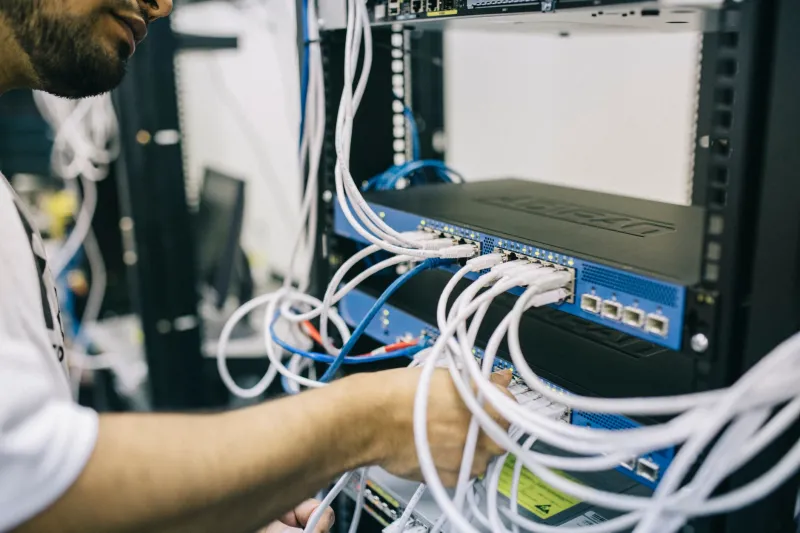
Ethernet is still the least dramatic option. If you have a router near the main TV, use a cable. If you are renovating or have a friendly electrician, run Cat 6 to the rooms that matter. For everybody else, the practical order is: wired where possible, Wi-Fi 6 mesh with a wired backhaul next, powerline adapters as a fallback, and plain Wi-Fi last.
Powerline kits can work well in some UK homes and badly in others. They depend on your ring main and whatever else is plugged in. Buy from a retailer with a returns policy and test at 9pm, not at midday. Avoid daisy-chaining cheap extenders; each hop adds latency and jitter. For a garden room or loft conversion, a dedicated access point on the end of an Ethernet run is usually calmer than a repeater.
Choose devices by room
Not every room needs a flagship box. A 1080p bedroom TV does not need a 4K streamer, and a kitchen set that mostly shows breakfast news does not need Ethernet and a fan. Match the device to the screen and the job.
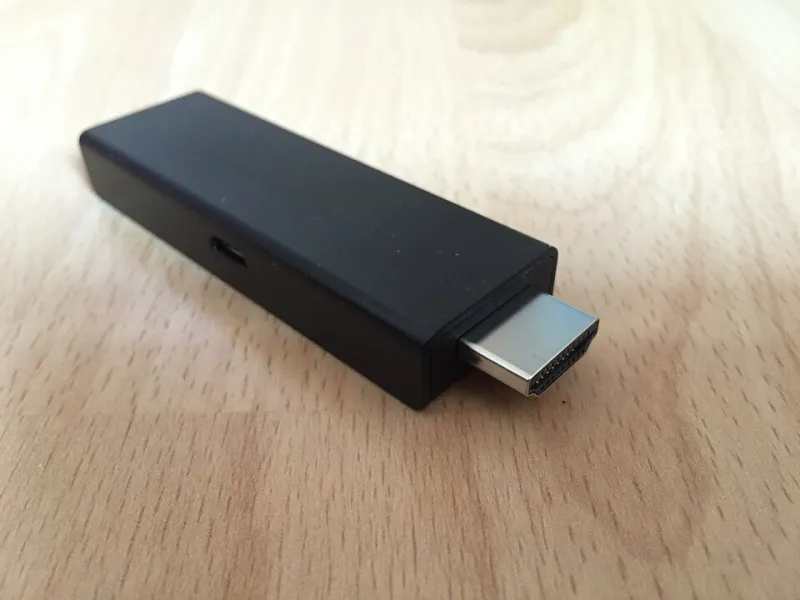
For the main TV, a Google TV or Android TV box with 4GB of RAM and an Ethernet port is a sensible 2026 choice if you want a wired connection and a proper remote. A Fire TV Stick 4K Max is cheaper and fine on Wi-Fi, but add the Ethernet adapter if the signal is marginal. For bedrooms, an HD streaming stick or a basic Android TV box is enough. Avoid no-name boxes with 1GB of RAM; they may load the app, then struggle with the guide.
Remote sharing is the bit people forget. Use the same IPTV app account with separate profiles if the app supports them. Set favourites per room so nobody has to scroll through 8,000 channels to find BBC One. Label remotes with a piece of tape. If your TV supports HDMI-CEC, enable it so one remote can wake the TV and the box, but be prepared to turn it off if everything starts switching itself on.
Router settings that stop one stream hogging everything
Your router is not a magic wand, but a few settings help. Turn on any quality-of-service or airtime fairness option, give the main streaming box a reserved IP address, and keep the 5GHz band for TVs and boxes where possible. If the router has a 'stream boost' or gaming priority mode, test it rather than trusting the sticker.
Do not put every smart plug, doorbell and phone on the same congested channel if you can avoid it. In a flat or terraced house, the 2.4GHz band may be crowded; 5GHz has less range but more room. A mesh system with wired backhaul beats a single router in the cupboard under the stairs. Also, schedule device updates for the morning, not 8:55pm.
A 9pm checklist
Test the setup when the house actually uses it. At peak time, check the stream limit, cap bedroom devices at HD, make sure the main TV is wired or on a strong 5GHz signal, and reboot the router only if you have ruled out the obvious. If one screen stutters while others are fine, the problem is probably that device's Wi-Fi or app settings, not the whole service. If every screen falls over at once, look at the broadband line, the router and the stream count.
Four screens can work. They just need a plan, a couple of cables and a realistic idea of what your line and your account can carry.